ShipHero AI Toolkit
ShipHero supports two ways to use AI with your ShipHero data: the ShipHero MCP and the Public API Skill.
Use the MCP if you want the simplest setup for asking ShipHero questions from an AI client. Use the Skill if you are an advanced user who wants to answer more complex ShipHero questions or if you are interested in building a ShipHero integration.
Why this exists
Warehouse operations generate constant questions: What’s the current inventory level on SKU ABC-123? Which orders have an address hold? Which shipments were created yesterday? Traditionally, answering those questions meant logging into ShipHero, running reports, or building custom integrations.
The ShipHero AI Toolkit gives AI clients a secure way to query live ShipHero data. It comprises two tools. The ShipHero MCP is the fastest path for common operational questions, while the ShipHero Public API Skill supports advanced analysis and ShipHero integration development.
| Option | Best for | Where it works |
|---|---|---|
| ShipHero MCP | Simple ShipHero lookups and operational questions | Any AI client or agent that supports MCP, including Claude, ChatGPT, and many others. |
| ShipHero Public API Skill | Complex ShipHero questions, advanced API work, custom GraphQL queries, and integration development | Agent coding harnesses such as Codex, Claude Code, Cursor, and many others |
ShipHero MCP
The ShipHero MCP is the easiest way to connect an AI client to ShipHero. It lets supported clients query your ShipHero account without requiring you to manually write GraphQL, manage Public API tokens, or install the full skill package.
ShipHero MCP works anywhere MCP is supported, including:
| Product | Supported clients |
|---|---|
| Claude Chat | Web and Desktop |
| Claude CoWork | Web and Desktop |
| Claude Code | Web, Desktop, and CLI |
| ChatGPT | Web, Desktop, and CLI |
| Other MCP clients | Any product with MCP support |
Use the MCP for questions like:
- What’s the current inventory level for SKU
ABC-123? - Show me orders with an address hold.
- Show shipments created yesterday.
- List purchase orders expected to arrive this week.
- Show returns created today.
If you grant read-write access, you can also ask it to make changes, like:
- Order tags: Add order tag
abcto unfulfilled orders with SKUABC-123. - Holds: Remove the address hold from order
123456. - Order editing: Add one
GIFT-WRAPto order#10582. - Kits: Turn existing SKU
SUMMER-BUNDLEinto a kit containing two shirts and one cap. - Shipments: Create a shipment for order
#10582with UPS tracking number1Z999.... - 3PL billing: Charge Acme $35 for relabeling 100 units.
- Products: Add an image of a plain white t-shirt for product
T-SHIRT-WHITE.
The MCP is designed for simple ShipHero queries and updates. It is not intended for building full integrations or generating complex custom application code.
Warning
Granting read-write access lets the MCP client create, update, or delete data in your ShipHero account, including products, orders, shipments, and more. Only grant read-write access to clients and prompts you trust, and review the changes it makes.
MCP Installation
Our MCP server URL is:
https://mcp.shiphero.com/mcpInstallation steps vary by AI client and subscription type. Follow your AI client’s documentation, or ask your AI client to help you configure the connection.
When you add the ShipHero MCP, your client opens a ShipHero authorization flow. Log in with your ShipHero credentials and select the access level (read-only or read-write) you want to grant to the client. You can change this later by reconnecting the MCP and going through the authorization flow again.
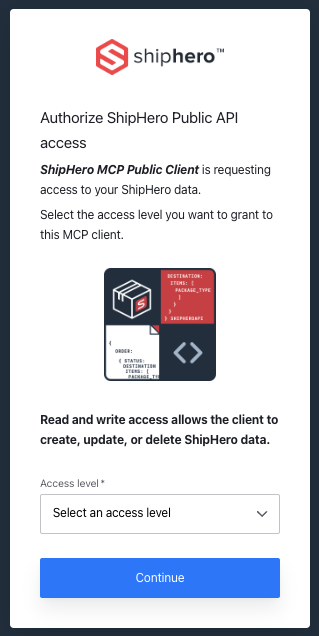
Pick your client below to expand its setup steps.
Claude
ChatGPT and Codex
Warning
If you have an earlier ShipHero MCP version installed, please uninstall it first.
See OpenAI’s official Developer mode and MCP apps in ChatGPT.
ChatGPT calls MCP servers Plugins.
Enterprise accounts
On Enterprise accounts, account owners need to add the MCP configuration through the ChatGPT organization setup.
Personal and Team accounts
On Personal or Team accounts, you can add the ShipHero MCP through ChatGPT Web, your config file, or the CLI. Adding it through ChatGPT Web makes it available in all ChatGPT and Codex clients connected to your account. Adding it through the config file or CLI makes it available only to local Codex clients that share that configuration.
ChatGPT Web
Warning
Enable Developer mode before adding the ShipHero MCP.
The easiest way to add the MCP is through https://chatgpt.com. Log in to your account, then go to Settings > Plugins > Browse Plugins > Add, and use the MCP server URL https://mcp.shiphero.com/mcp.
Config file
Add the following to your ChatGPT/Codex configuration (official documentation):
[mcp_servers.shiphero]
url = "https://mcp.shiphero.com/mcp"
scopes = ["read:public-api", "read-write:public-api"]

[mcp_servers.shiphero.oauth]
client_id = "00ks8TNFn5J9SrqePsRSHKmiakONdWjU"
callback_port = 41592
Restart your app afterwards.
CLI
Add the ShipHero MCP server:
codex mcp add shiphero --url https://mcp.shiphero.com/mcpCodex opens a login page. The page currently returns an error because of a Codex bug.
Return to the terminal and press
Ctrl+C.Log in again with the required scopes:
codex mcp login shiphero --scopes read:public-api,read-write:public-apiWhen the login page opens, authorize the connection.
Open Codex and test the ShipHero MCP.
Others
See your AI client’s documentation for MCP setup instructions. You can also ask the client to add the ShipHero MCP and point it to this page.
The ShipHero MCP server URL is https://mcp.shiphero.com/mcp.
The server requires OAuth. Choose a setup option below.
CIMD
Client ID
For clients that use a preconfigured OAuth client ID, use the following settings:
- OAuth Client ID:
00ks8TNFn5J9SrqePsRSHKmiakONdWjU - OAuth Callback port:
41592 - Scopes:
read:public-api read-write:public-api
MCP stdio command
Alternatively, you can fall back to a stdio MCP configuration:
npx -y mcp-remote@latest https://mcp.shiphero.com/mcp 41592 --transport http-only --static-oauth-client-info "{\"client_id\":\"00ks8TNFn5J9SrqePsRSHKmiakONdWjU\"}" --static-oauth-client-metadata "{\"scope\":\"read:public-api read-write:public-api\"}"Troubleshooting
If the ShipHero MCP doesn’t show up or doesn’t respond right after you add it, restart your AI client. Most clients only pick up newly added MCP servers after a full restart.
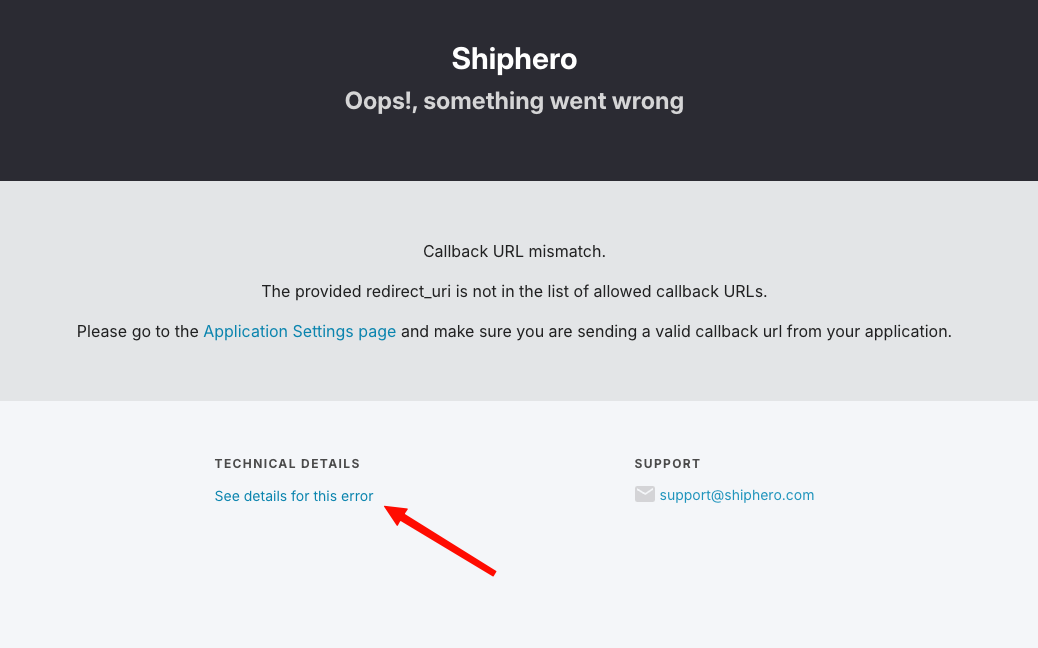
If authorization fails with an error page like the one below, click See details for this error. The information behind that link is important — share it with ShipHero Support or when asking for help in the Community so we can diagnose the problem quickly.
Still stuck? Come ask in the ShipHero Community. We’re happy to help.
MCP Usage
After installation and authorization, ask your AI client a ShipHero question:
Get my last 50 ShipHero orders.Keep prompts specific. Ask for the exact object, date range, SKU, order number, warehouse, or status you need. Specific prompts use fewer API credits and return better answers.
Public API Skill
The Public API Skill is for advanced users working from an agentic coding harness. It provides an agent with more advanced capabilities than those of the MCP option.
Use the Skill when you want an agent to:
- Analyze ShipHero data with custom query logic.
- Build or modify software that integrates with ShipHero.
- Know how to use the ShipHero Public API.
The Skill requires a coding agent. It is not meant for Claude Chat or Claude CoWork type of tools. Use the MCP on those clients.
Skill Installation
Download the current Skill package:
shiphero-public-api-skill-20260911.zip
The fastest installation path is to ask your coding agent to install it:
Download the Public API Skill from https://developer.shiphero.com/shiphero-ai-toolkit and install itFor manual installation, extract the zip into your agent’s skill folder.
unzip shiphero-public-api-skill-20260911.zip -d ~/.agents/skills/Common skill folders:
| Agent | Skill folder |
|---|---|
| Codex | ~/.agents/skills/ |
| Claude Code | ~/.claude/skills/ |
| Cursor | .cursor/skills/ |
Restart your agent if it does not load newly installed skills automatically.
Skill Usage
After installation, you can ask your agent ShipHero questions:
How many orders did I receive today on ShipHero?For integration work, be explicit about the target language, framework, and workflow:
Use the ShipHero Public API Skill to add a Node.js function that fetches inventory by SKU from the ShipHero GraphQL API.The Skill includes scripts for OAuth PKCE token setup, token refresh, and token revocation. When your work is done, ask the agent to revoke the token if it no longer needs access.
You can tell the agent to request only the permissions needed for a task or to omit access to protected personal data. See Scopes for the available permissions and prompt examples.
API Credits
Both the MCP and the Skill query the ShipHero Public API, but they use a separate AI Toolkit credit pool containing 2,002 credits. Credits used through the MCP or the Skill do not reduce the credits available for normal Public API usage.
AI agents can make several calls while answering one question. Those calls consume AI Toolkit credits. Ask for only the fields and date ranges you need, and monitor credit usage during testing.